TkFab® De En Fr tree
  QuickField : 2D features

        General

        2D screenshots

        3D screenshots

        2D features

        3D features

        Programming

Table of Contents


QuickField : 2D features


General

In the "Problem" view, you can edit the main options, as well as material properties, source fields and boundary conditions. The hierarchy shows the file names referenced by the issue. The data and libraries contain the list of names assigned to blocks ( blocks ), segments ( edges ) and points ( vertices ). The blocks, segments and points also define the geometry of the problem.
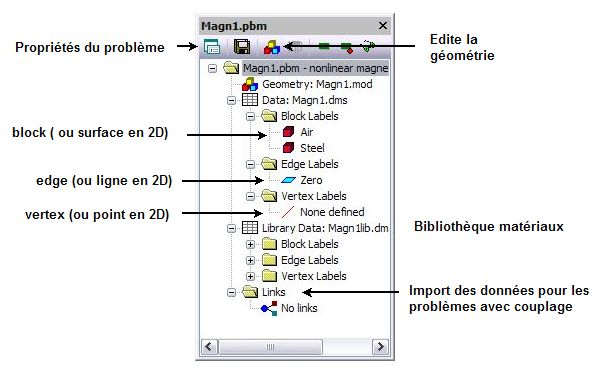
Problem editor
Interface ( problem structure )


In the "Problem Properties" view, you can set additional options like analysis type, geometry type, problem thickness, accuracy, unit, coordinate type, and for multiphysics problems, related problems.
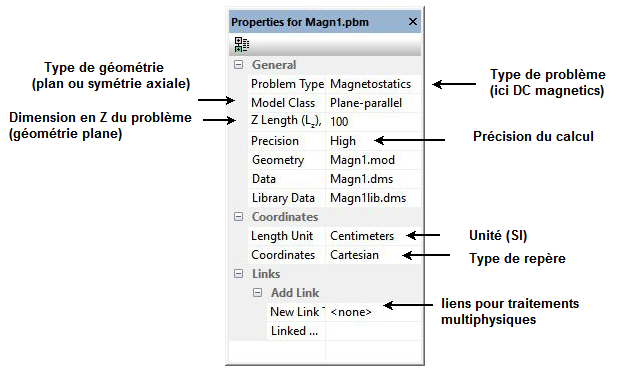
Problem properties
Interface ( problem parameters )
 

Pre-processor

You create the geometry in a 2D plane, define the materials and boundary conditions from the labels . The geometry can be planar or axial symmetry. Defining the thickness "z" determines the volume of the design corresponding to a simple extrusion. The selection of geometric entities is also very easy in the 3D interface. A context menu allowing you to make the different parts of the design visible or invisible (in 3D extrusion).

mesh and geometry
Mesh and Geometry


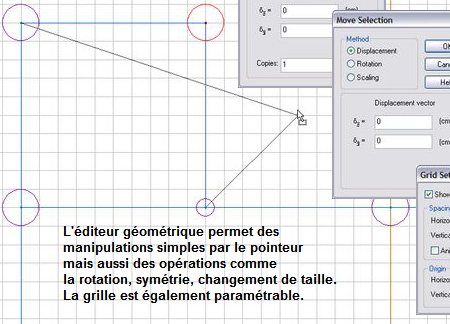
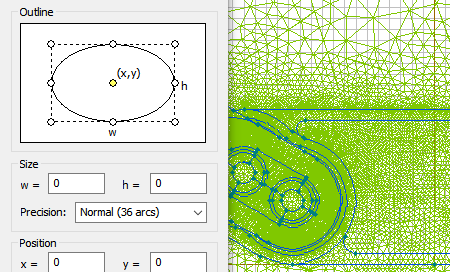
Geometry is created mainly by inserting points, joining them with segments, and finally closing a set of segments to form surfaces. Then any entity, or group of entities can be copied, pasted, stretched... Other classic tools like zoom, grid undo/do make it quick and easy to draw new designs.

In the "Geometry" view, you can define geometric elements and associate them with blocks , edges and vertices .These three elements are enough to define the geometry. Several elements of the same type can have the same label .

drawing tools - CAD
Sketching and geometry

The physical properties of the geometric part of the problem are thus defined by these labels . The CAD editor has been simplified as much as possible in order to link mesh and geometry in the most efficient way possible.


Post-processor

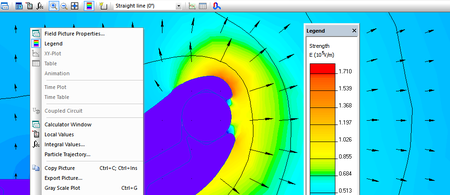
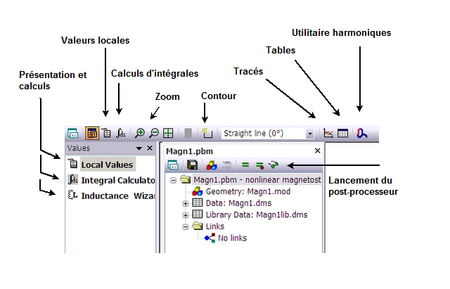
In the "Problem" view, you can view the results and display them as color gradients, calculated values, curves or even tables. From this data, additional tools make it possible to present the results in more direct forms : calculation of harmonics, particle tracing... The contour is the most important entity of the post-processor because it defines where calculations are performed.

color map results
Results and tools


Features

  • Waveforms
  • Tables
  • Contours
  • Local values
  • Integral values
  • Impedance calculations
  • Tabs
  • Zoom
  • Color maps
  • Vectors
  • Equipotentials
  • Tensors (Stress and strain)
  • Field, data, images, mesh ... export
postprocessor tools
Main tools